How to Remove Metadata from PDF Files — Complete Guide
What Metadata is Stored in PDFs
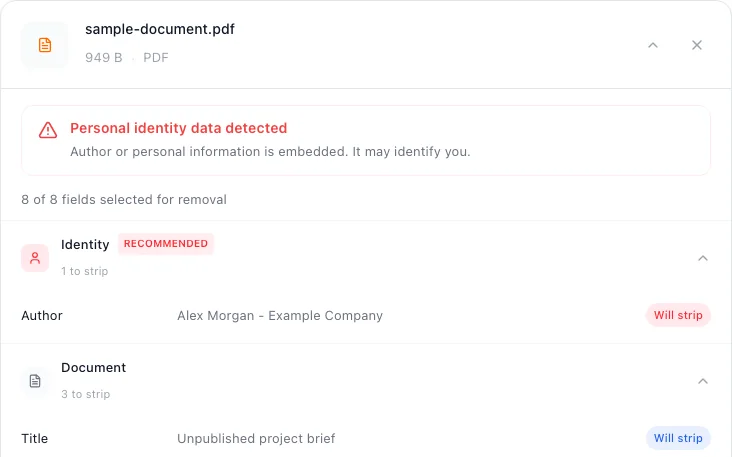
PDF files carry a structured set of metadata fields defined by the PDF specification (ISO 32000). These fields are embedded in the document's information dictionary and are accessible to anyone who opens the file with a PDF reader, text editor, or metadata inspection tool. Unlike images, where metadata is mostly technical, PDF metadata often contains directly identifying information about people and organizations.
The standard metadata fields found in most PDF documents include:
- Title — The document title, which may differ from the file name.
- Author — The name of the person who created the document.
- Subject — A description or summary of the document contents.
- Keywords — Search keywords associated with the document.
- Creation date — The exact date and time the PDF was originally created.
- Modification date — The date and time of the last edit, along with a full revision history in some cases.
- Creator software — The application used to create the document (Microsoft Word, Adobe Acrobat, LaTeX, etc.).
- Producer — The software or library that generated the final PDF output.
- Custom properties — Organization-specific fields such as department, project code, or client name.
Some PDFs also contain Extensible Metadata Platform (XMP) data — an XML-based standard that can store even richer information, including revision history, copyright notices, and embedded thumbnail images. XMP metadata is not always visible in standard PDF readers but can be extracted with specialized tools.
Why PDF Metadata Matters
PDF metadata poses unique risks because the documents themselves are often professional, legal, or academic in nature. The metadata attached to a PDF can reveal information that the sender never intended to share, sometimes with serious consequences.
- Document tracking: Creation and modification timestamps can reveal when a document was drafted, how long it was worked on, and when it was finalized. Competitors or adversaries can use this information to infer decision-making timelines.
- Author identification: The author field directly names the person who created the document. This can expose internal team structures, reveal who wrote an anonymous report, or link a document to a specific employee.
- Revision history leaks: Modification dates and software trails can show how many edits were made, what tools were used, and sometimes even reveal content from earlier versions that was supposedly deleted.
- Corporate espionage: Software metadata (creator and producer fields) can reveal what tools and versions an organization uses, potentially exposing vulnerabilities or internal workflows.
In legal proceedings, PDF metadata has been used as evidence to establish authorship, timelines, and intent. For whistleblowers and anonymous sources, failing to strip PDF metadata can be dangerous. Even in routine business communication, metadata leaks can undermine negotiations or reveal competitive information.
How to Remove PDF Metadata with metapeel
metapeel provides a fast, client-side solution for stripping metadata from PDF files. Your documents never leave your browser, and no data is sent to any server.
Step 1: Upload Your PDF
Drag and drop your PDF file onto the metapeel tool, or click to browse your device. metapeel reads the file entirely within your browser using a JavaScript PDF parser. There are no file size limits and no upload wait times because nothing is transmitted over the internet.
Step 2: Review All Metadata
metapeel scans the PDF and displays every metadata field it finds — title, author, subject, keywords, creation date, modification date, creator application, producer, and any custom properties. XMP metadata is also detected and shown. You can review everything at a glance before proceeding.
Step 3: Clean and Download
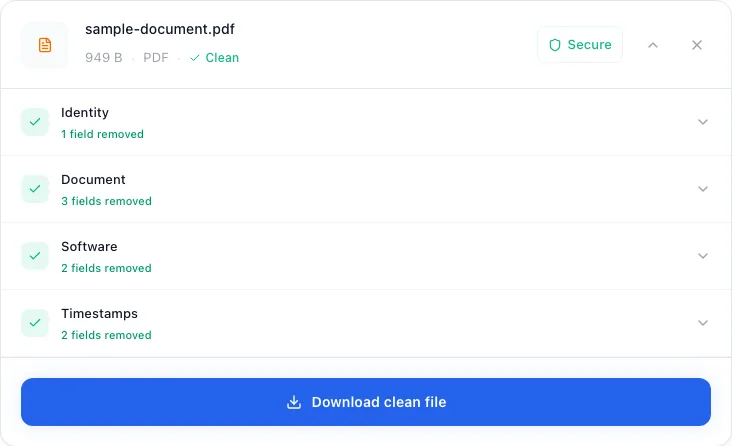
Click the clean button to generate a new PDF with all metadata fields cleared. The document content — text, images, formatting, and layout — remains completely untouched. Only the information dictionary and XMP metadata are stripped. Download the sanitized file and share it safely.
The process is typically instantaneous for documents under 50 pages. Larger PDFs may take a few seconds depending on their complexity, but everything continues to run locally in your browser.
Use Cases
Different professionals face different metadata risks when working with PDF documents. Here are the most common scenarios where stripping PDF metadata is essential:
- Legal documents: Lawyers and legal professionals routinely share filings, contracts, and discovery documents. Metadata can reveal drafting timelines, which attorney authored a brief, and what software was used — information that may be privileged or strategically sensitive.
- Resumes and CVs: Job applicants often send resumes as PDFs. Metadata in these files can reveal the applicant's full name, editing timestamps that show when the resume was last updated, and the software used to create it. When applying anonymously or through a recruiter, this information should be removed.
- Academic papers: Researchers submitting papers for peer review need to maintain anonymity. PDF metadata can contain author names, institutional affiliations stored in custom fields, and creation dates that correlate with specific research periods.
- Business proposals: Companies sharing proposals with potential clients may inadvertently reveal internal tooling, team member names, and revision counts that weaken their negotiating position.
In all of these cases, metapeel provides a quick, reliable way to sanitize documents before sharing. Because the tool runs in your browser, you can use it on any device without installing software or creating an account.
Verifying the Results
After downloading your cleaned PDF, you can verify that all metadata was successfully removed. The simplest method is to re-upload the cleaned file into metapeel and confirm that all fields are now blank or absent.
You can also verify metadata removal using desktop tools. On macOS, open the PDF in Preview and press Command+I to open the Inspector. On Windows, right-click the file, select Properties, and check the Details tab. In Adobe Acrobat, go to File then Properties to view the document metadata. In all cases, a properly cleaned PDF should show no author, no creation dates, and no custom properties.
For an extra layer of verification, you can open the PDF in a plain text editor and search for common metadata keywords. While the binary content will not be human-readable, the absence of author names and dates in readable portions of the file confirms successful cleaning.