
How to Remove MP3 ID3 Tags and Audio Metadata
Use the tool below to remove ID3 tags and audio metadata in your browser.
or drag and drop files anywhere here
How to Remove ID3 Tags and Audio Metadata in 3 Steps
Follow these three steps. Each image shows only the control used in that step.
Step 1
Upload the audio file
Drop the audio file into the upload area or choose it from your device.
Open the tool
Step 2
Review the metadata
Check the detected ID3 tags and audio metadata and select the fields you want to remove.
Open the tool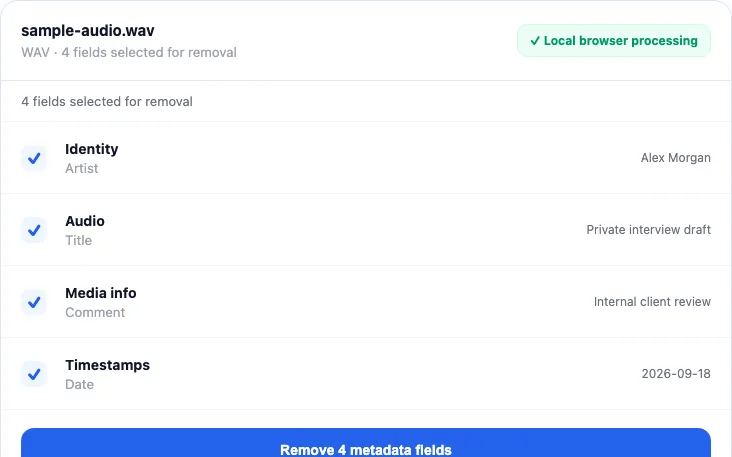
Step 3
Remove and download
Start the cleaner and download the new copy.
Open the tool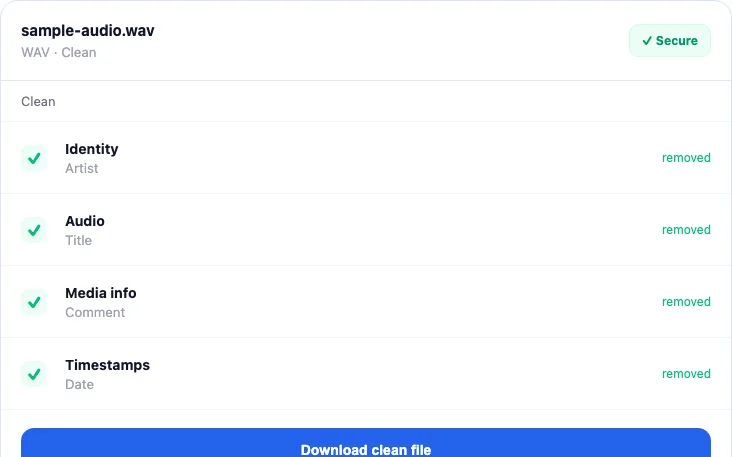


ID3 Tags and Audio Metadata this tool can remove
Check the highest priority fields first.
- Artist, album, and track titleRemove first
- Copyright, comments, and identifiersHigh priority
- Encoder software and datesHigh priority
- Genre, language, and other supported global tagsReview
ID3 Tags and Audio Metadata questions
Short answers about verification, file quality, and format limits.
MP3 ID3 tags are only one audio metadata system
MP3 commonly uses ID3v1 and ID3v2. ID3v2 is a flexible frame-based container that can store title, performer, album, date, genre, comments, lyrics, pictures, identifiers, and many other values. The ID3v2 structure specification explains how those frames sit alongside the audio data.
Other formats use other systems. OGG and FLAC commonly expose Vorbis Comments; M4A uses MP4-style boxes or atoms; WAV can use RIFF INFO and Broadcast Wave structures. The privacy questions are similar, but the container and muxer decide how tags are copied or rewritten.
What happens to embedded cover art?
ID3 has attached-picture frames, and other audio containers can represent artwork as a picture block or attached stream. Because the current FFmpeg command maps all input streams, metapeel does not promise that every embedded image or attachment is removed. The ID3 frame specification documents how picture frames differ from ordinary title or artist text.
If artwork is sensitive, inspect it explicitly with a tag editor or ffprobe. A text-only metadata table is not sufficient evidence that attached media is absent.
Does removing tags change audio quality?
The current path uses FFmpeg stream copy, so it does not decode and re-encode the mapped audio stream. That avoids a lossy transcoding generation. The container is still rewritten, so file hashes, tags, attachments, padding, and byte layout can change, and unusual files may not remux successfully.
How to verify the cleaned audio file
- Play the full output and check duration, channels, and any transitions or chapters that matter.
- Load the cleaned copy into metapeel again and compare the detected descriptive tags.
- Use
ffprobe -show_format -show_streams cleaned.mp3to examine global and stream-level data. See the ffprobe reference. - Check specifically for attached pictures, lyrics, comments, identifiers, and proprietary fields if those are part of your threat model.
- Remember that a neutral encoder or container tag may be written by the output muxer even when the original personal values are gone.
Video uses the same engine and deserves the same distinction between global metadata and technical stream information. Continue with the video metadata workflow, or use the cross-format guide for documents and images.
Written and maintained by
metapeel Editorial TeamThe team that documents metapeel's browser-based metadata inspection and cleaning behavior against the current implementation and primary format references.